User Connections — The Complete Guide
User Connections — The Complete Guide
Every organization has relationships between its people that shape how learning happens. A manager who approves a team member's enrollment. A mentor guiding a new hire through their first ninety days. A study group of peers working through a program together. A facilitation team watching over a whole district of learners.
User Connections is how you bring those relationships into ThinkingCap — whatever shape they take. One flexible feature lets you model almost any user relationship your organization needs: you decide who leads and who is led, how people get connected, and what leaders are allowed to do for their members. Supervision, mentorship, coordination, community — if you can describe the relationship, you can almost certainly build it here, and you can build as many different ones as you need, each with its own name, rules, and powers.
This guide is organized the way you should approach the feature:
- Part 1 — Choosing your model. The decision framework. Read this first.
- Part 2 — Use cases. Six worked examples, one per relationship pattern.
- Part 3 — The mechanics. The complete reference: the setup wizard, requests,
matching, pools, surfaces, notifications, forums, reporting, and APIs.
- Part 4 — Gotchas. The traps teams most often hit, with the fix for each.
Part 1 — Choosing your model
1.1 The mental model
flowchart LR
subgraph T["One connection type ="]
W["<b>WHO</b><br/>Leader group & Member group<br/>(everyone, or a metadata rule)"]
H["<b>HOW</b><br/>Matching method<br/>(manual · auto · semi-auto)"]
P["<b>POWERS</b><br/>Permission bundle<br/>(enroll, approve, attest,<br/>report, accounts, …)"]
end
T --> S1["Supervisor hierarchy<br/>1 leader : N members"]
T --> S2["Mentorship<br/>curated pairs, accept/decline"]
T --> S3["Pool<br/>M leaders : N members, shared space + forum"]
T --> S4["Peer community<br/>everyone a leader, or co-members"]A connection type is a reusable definition: "people like X lead people like Y, paired by method Z, and leaders get these powers." You can have as many types as you need, scoped to branches. A user can be a leader in one type and a member in another, and can appear in several types at once.
The two sides of a connection have formal names:
| Side | Default UI label | Commonly renamed to |
|---|---|---|
| The overseeing side | Leader | Supervisor, Mentor, Manager, Coordinator, Facilitator, Coach |
| The overseen side | Member | Learner, Mentee, Direct report, Teacher |
Labels are customizable per type (Custom Group Labels), so the same feature presents as "Mentor/Mentee" in one program and "Facilitator/Teacher" in another. Older screens say Source/Target; current screens say Leader/Member. They are the same two sides.
1.2 Decision 1 — Shape: what does the relationship look like?
| If the reality you need to model is… | Shape to choose |
|---|---|
| Each person has a manager/coordinator who oversees their training | One-to-one type (one leader : many members) |
| People should be deliberately paired, with consent, for a program (mentoring, coaching) | One-to-one type with requests on (pending → accept/decline lifecycle) |
| A team of leaders shares oversight of a group — no fixed pairs, everyone in one space, usually with a forum | Pool (many leaders : many members) |
| Peers learning from each other as equals | Pool (everyone a leader = full peer mesh) |
| Someone needs powers over an activity (facilitate a session, moderate its forum), not over people | Activity Connections — a sibling feature, not a user-to-user connection (see §3.9) |
The pool decision deserves emphasis, because it is the most mis-chosen shape. A pool is not "a one-to-one type with extra members." In a pool there are no pairs at all: every leader is connected to every member, all leaders see all leaders and all members, and removing one member breaks that member's link to every leader at once. Pools carry their own notification set and size limits (max leaders, max members). Forums, by contrast, are not pool-specific — any connection type, one-to-one or pool, can attach one (§3.6). Once users are connected, a type cannot be flipped between one-to-one and pool — conversion requires help from ThinkingCap support. Choose the shape before you populate.
flowchart TD
    subgraph 1to1["One-to-one type"]
        L1["Leader A"] --- M1["Member 1"]
        L1 --- M2["Member 2"]
        L2["Leader B"] --- M3["Member 3"]
    end
    subgraph pool["Pool"]
        PL1["Leader A"] --- PM["shared space"]
        PL2["Leader B"] --- PM
        PM --- P1["Member 1"]
        PM --- P2["Member 2"]
        PM --- P3["Member 3"]
    end
1.3 Decision 2 — Matching: how do connections form?
Five methods exist. Four appear in the product UI; the fifth (semi-automated by leader) is rare.
| Method | How it works | Choose when |
|---|---|---|
| Manual | No criteria. Admins (or leaders, if allowed) assign people by hand, one by one or in bulk. | You want exact control, the population is small, or membership comes from an external system of record (HRIS export → bulk import). This is how most deployments run. |
| Automated | The system matches on shared metadata values when the type is activated, and re-matches on every relevant metadata/branch change. Members can only decline (if allowed), never pick. | Your user metadata is clean and authoritative, and the rule "everyone with the same value in field X reports to the person flagged Y" genuinely expresses your org. |
| Semi-automated by matching admin | Background jobs propose matches; a designated matching admin curates them in Process Matches. Matches are pending until accepted. | You want machine suggestions with human judgment on top — typical for mentorship programs. |
| Semi-automated by learner | At login, the learner completes metadata, sees up to 25 candidates, and picks (up to the type's max). Unpicked candidates auto-decline; the mentor may keep final decline rights. | Mentees should choose their own mentor from a qualified pool. |
| Semi-automated by leader | The leader side chooses from proposed candidates. | Rare; pilot programs. |
Two practical notes before you choose:
- Start manual, grow into automation. Manual matching works with zero metadata
discipline, and you can always add automated types later once your metadata is clean enough to express the rules. Many organizations run manual for years quite happily.
- Auto-match traps are semantic, not technical. The engine matches people who
share a value in the criteria fields; it cannot express "members whose Supervisor field equals this specific person." Multiple criteria are combined with AND only. Read §4.2 before your first automated type.
1.4 Decision 3 — Powers: what should leaders be able to do?
Every capability is an individual checkbox on the connection type, off until you turn it on. "Supervisors can't do X" is almost always a permission checkbox, not a bug. The current set:
| Power (as labeled in the wizard) | What it unlocks for leaders |
|---|---|
| Enroll learners | Enroll connected members into self-enrollable activities from the Hub (validates eligibility, prior enrollment, prerequisites; LP-context activities and past ILT sessions excluded) |
| Withdraw learners | Withdraw connected members |
| Approve/decline enrollment requests | Members' enrollment requests land in the Hub Tasks tab |
| Approve/decline withdrawal requests | Same, for withdrawals |
| Approve Attestations | Sign off members' attestation statements |
| Activity reports | The report wizard over own members only (Hub Report tab) |
| Extend due date | Adjust members' due dates |
| View transcripts | Member transcripts |
| Add Action Plans | Personal action plans for members |
| Reset Password | Reset members' passwords |
| Allow Leaders to create user accounts | Leaders add new user accounts as their members |
| Allow Leaders to edit user account | Light account editing of members |
| Add Simplified Attestation activities | Add attestation activities on behalf of members |
| Mute connection / Un-mute connection | Mute the connection (hides it from leader views) and bring it back |
(Older documentation also lists mark assignments, mark attendance, view survey/assessment results, pull attestation documents, view certificates, and approve forum posts; those checkboxes were retired from the type wizard — forum post approval is now configured on the type's forum settings. Types created before the retirement may still carry those powers. If a help article promises one of these checkboxes and you can't find it, that is why.)
Limits, break rights, and decline rules live one step later in the wizard — Connection settings (§3.1, step 5).
1.5 Decision 4 (the one people forget) — Lifecycle: how do connections end?
Decide up front, because these are all per-type settings:
- Request lifecycle (if requests are on): do requests expire? After how long? On
expiry or decline, does the engine process the next match automatically?
- Break rights: can members break? Can leaders? (If neither, only admins can.)
- Automatic breaking: on member inactivity (after N units), and/or when matching
criteria stop being true.
- Deactivation behavior: Remove connections to inactive users is destructive —
connections broken this way are not restored on reactivation, except for automated types, which simply re-match. Manual types must be rebuilt.
1.6 The decision tree
flowchart TD
    A["What are you modeling?"] --> B{"Powers over PEOPLE<br/>or over an ACTIVITY?"}
    B -- "An activity (facilitate, moderate, attend)" --> AC["<b>Activity Connections</b><br/>(sibling feature — §3.9)"]
    B -- "People" --> C{"Fixed pairs<br/>or a shared group?"}
    C -- "Shared group / community" --> POOL["<b>POOL</b> type<br/>many leaders × many members"]
    POOL --> POOL1["⚠ one-way door:<br/>no flip back to 1:1 once populated"]
    C -- "Pairs" --> D{"How should pairs form?"}
    D -- "By hand / bulk file / external system" --> MAN["<b>Manual</b> type"]
    D -- "By shared metadata at scale" --> AUTO["<b>Automated</b> type<br/>⚠ read §4.2 first"]
    D -- "Human curation of system proposals" --> SAA["<b>Semi-auto by admin</b><br/>+ Process Matches"]
    D -- "Mentee self-selects" --> SAL["<b>Semi-auto by learner</b><br/>+ request lifecycle"]
    MAN & AUTO & SAA & SAL --> E{"Consent needed<br/>before active?"}
    E -- Yes --> REQ["Turn requests ON:<br/>pending → accept/decline,<br/>expiry, next-match"]
    E -- No --> ACT["Connections activate immediately"]
    REQ & ACT --> F["Set the PERMISSION bundle<br/>(§1.4) + lifecycle rules (§1.5)"]
    F --> G["Optional: attach a FORUM —<br/>any type, 1:1 or pool (§3.6)"]
Part 2 — Use cases
Six patterns, each with a goal, the recommended configuration, a short story of a fictitious organization using it, and the watch-outs.
2.1 The supervisor hierarchy (the default starting point)
Goal. Every employee has a manager; managers approve enrollments, sign off attestations, and pull completion reports on their own people only.
Configuration. One manual one-to-one type — or simply use the built-in "Supervisor" type every site starts with (see §3.8). Powers: approve/decline enrollment, sign off attestations, view transcripts, pull completion reports, extend due dates. Break allowed from both sides. Populate from your HRIS via the API or a bulk user import.
Story — Northmark Retail, a national retailer. When Northmark rolled out compliance training across 220 stores, L&D lead Priya needed every store manager to see only their own people. She didn't build anything custom: she renamed the built-in Supervisor type's labels to "Manager / Team Member" and imported the reporting lines from the HR system. Twenty thousand employees landed under roughly six hundred store and district managers overnight. On Monday mornings, district manager Carla opens her Connection Hub, approves the weekend's enrollment requests from her Tasks tab, and pulls a completion report on her own stores before the ops call. When a store transfers districts, the HR import re-points the connection the following night.
Watch-outs. If supervisors "lose" people after org changes, check whether the team is split across several types (the Hub defaults to showing one type — set the default view to All). Deactivating a user with remove connections on inactive set is permanent for manual types.
2.2 The mentorship program with self-selection
Goal. A structured program: qualified mentors, mentees choose their own mentor, both sides can decline, unmatched mentees roll to the next candidate automatically.
Configuration. One-to-one type, semi-automated by learner, requests on. Match Group Of = a metadata rule defining qualified mentors; Match Group To = mentees. Per-mentor match cap; expiry on requests with process next match enabled; learner may decline and skip; mentor keeps final decline. Custom labels "Mentor / Mentee". Notification set: match request, accepted, declined, reminder, expired.
Story — the Meridian Professional Association. Every spring, Meridian opens its mentorship intake. Senior members opt in by completing a "Mentor profile" metadata section — and that is the only gate, because the type's Match Group Of is a rule over that section: opting in is what makes someone matchable. New member Theo finishes registration and is shown up to fifteen candidate mentors; he picks Amara, a project director in his sector. Amara gets the request notification and has the final say — she accepts within the day. When another mentee's first choice doesn't respond, the two-week expiry passes the request along to her second choice automatically, no staff involved. Nobody at Meridian touches a spreadsheet; the type runs the program.
Watch-outs. Candidates are capped at 25 shown. Matching is asynchronous — proposals appear after background processing runs, not instantly. If a mentor's metadata changes mid-session, a fresh login may be needed before recalculation sees it.
2.3 Learning-community pools at scale (the cohort/community model)
Goal. Hundreds of facilitated learning communities — each a program cohort, school district, or regional group — where a small facilitation team shares oversight of many learners, with a discussion forum per community.
Configuration. One pool per community. Leaders = facilitators (a handful per community); members = learners (tens to hundreds; the largest communities can reach the thousands). Forum enabled on creation. Pool notifications on, with pool smart tags ({{PoolUserName}}, {{PoolUserRole}}, … — not the mentor tags). Adopt a naming convention from day one, e.g. STATE: Program name ("GA: Early Childhood Champions", "WI: Lakeshore District Cohort").
Story — Lumen Learning Collective, a distance-education nonprofit. Lumen runs eight hundred study communities for early-education teachers. Each community is one pool, named by convention — "GA: Early Childhood Champions", "WI: Lakeshore District Cohort". Facilitator Dana and her three co-leaders share oversight of about twenty learners in their community; nobody is paired with anyone, because in a pool every leader is connected to every member. Growth is invite-driven: Dana pastes a comma-separated list of email addresses — including teachers who don't have accounts yet — and the invitations go out. Introductions, questions, and wins all live in the community's own forum. Lumen's reports always separate pending invites from active members, because in an invite-driven model a large pending population is normal.
Watch-outs. Pools are a one-way door (no flip back to 1:1). Leaders deliberately appear inside member lists — explain this in facilitator training so it isn't reported as duplication. Re-adding someone already in a pool can create duplicates (§4.5) — prefer the UI add paths that check, and audit periodically.
2.4 Employer coordinators with purchasing power
Goal. A coordinator at each customer organization enrolls their own staff, withdraws them, pulls compliance reports on their people only, and buys seats on their behalf — with the receipt naming the learner, not the coordinator.
Configuration. One-to-one manual type "Coordinator" per employer grouping (or one type with metadata matching once employer metadata is clean). Powers: enroll, withdraw, pull completion reports, purchase-for-others. Later, when organizations consolidate, the 1:1 connections can be migrated into employer-named pools ("ACME Utilities crew").
Story — Sentinel Compliance Training, a safety-course provider. Sentinel sells safety courses to forty municipal utilities. Each utility names a training coordinator — at Harbourview Water, that's Marcus — and Sentinel connects the utility's crew to Marcus on a manual "Coordinator" type. Marcus enrolls his own operators, withdraws them when they leave, pulls compliance reports on his people only, and buys seats on their behalf — with the receipt naming the operator, not Marcus. When Sentinel later streamlined administration, the one-to-one connections were consolidated into one pool per utility — but only after a data-cleanup pass: company-name metadata had spelling variants, a few coordinators were missing theirs, and overlapping crew lists had to be untangled by hand.
Watch-outs. Conversions 1:1 → pool are support-assisted migrations (§4.5). Receipt naming for purchase-for-others is a per-type concern; verify it in a test purchase.
2.5 Volunteer compliance sign-off (the auto-match cautionary tale)
Goal. Volunteer supervisors sign off mandatory attestation courses for the volunteers on their shift/team.
Configuration. Automated one-to-one type: Match Group Of = the supervisor group; Match Group To = volunteers; criterion = shared team/shift metadata value. Power: sign off attestations.
Story — Second Chance Animal Rescue. The rescue runs on volunteers, and every volunteer must complete a mandatory attestation course signed off by a shift supervisor. Admin Jo built an automated type: Match Group Of = the "Sunday Day Supervisors" group, Match Group To = volunteers, criterion = shared shift value. Then nothing appeared in anyone's My Teams. The bug was subtle and instructive: Jo had put the same group on both sides of the match, so the engine faithfully connected supervisors to each other. Once the two sides were distinct — supervisors on the left, volunteers on the right, matched where their shift values agree — twelve correct matches formed within the hour. Sign-offs now route to the right supervisor automatically, and new volunteers are matched the day their metadata is filled in.
Watch-outs. §4.2 is required reading before any automated type: distinct groups on the two sides; shared-value semantics (you cannot pick a specific value as the criterion); AND-only criteria; no recompute while the type is inactive.
2.6 Teachers as supervisors (the inverted ratio) and peer models
Goal. In a tutoring-school model, every teacher supervises a handful of learners — nearly as many leaders as members — and teachers also learn from each other.
Configuration. For teacher→learner oversight: a manual or metadata-matched 1:1 type; expect ratios near 1:1.5 (a school might run ~6,500 teachers to ~9,800 learners). For peer-to-peer learning, model it one of two ways:
- A pool where everyone is a leader. Leaders see all leaders and all members, so
an all-leader pool is a full peer mesh with a shared forum. Best for communities of practice.
- A pool where peers are co-members under a facilitator. Peers interact via the
forum; the facilitator (leader) moderates. Best for cohorts.
Story — Parlance Language School, an online language school. Parlance teaches in eleven time zones, and its numbers look wrong until you understand the model: roughly 6,500 teachers lead 9,800 learners — nearly one leader per one and a half members, because every tutor supervises a handful of students. Oversight runs on a manual one-to-one type: tutors read transcripts, extend due dates, and sign off speaking-practice attestations for their own students. The teachers themselves learn from each other in "The Staff Room" — a pool where every teacher is a leader. Because leaders see all leaders and all members, an all-leader pool is a full peer mesh: its forum is where a tutor in São Paulo trades lesson ideas with one in Seoul, with no one person in charge.
Watch-outs. Members can never initiate a connection to a leader — membership is always managed from the leader/admin side, by design. In pools, peers-as-members see leaders but not each other's activities; the forum is the peer space.
Part 3 — The mechanics
3.1 Anatomy of the connection-type wizard
Branch menu → Connections → User Connections → [Add Connections]. The wizard walks you through up to eight steps; which ones you see depends on the matching method you pick (manual types skip the matching steps). For a new type, Apply becomes available from the Connection settings step onward — use it, because abandoning the wizard loses work.
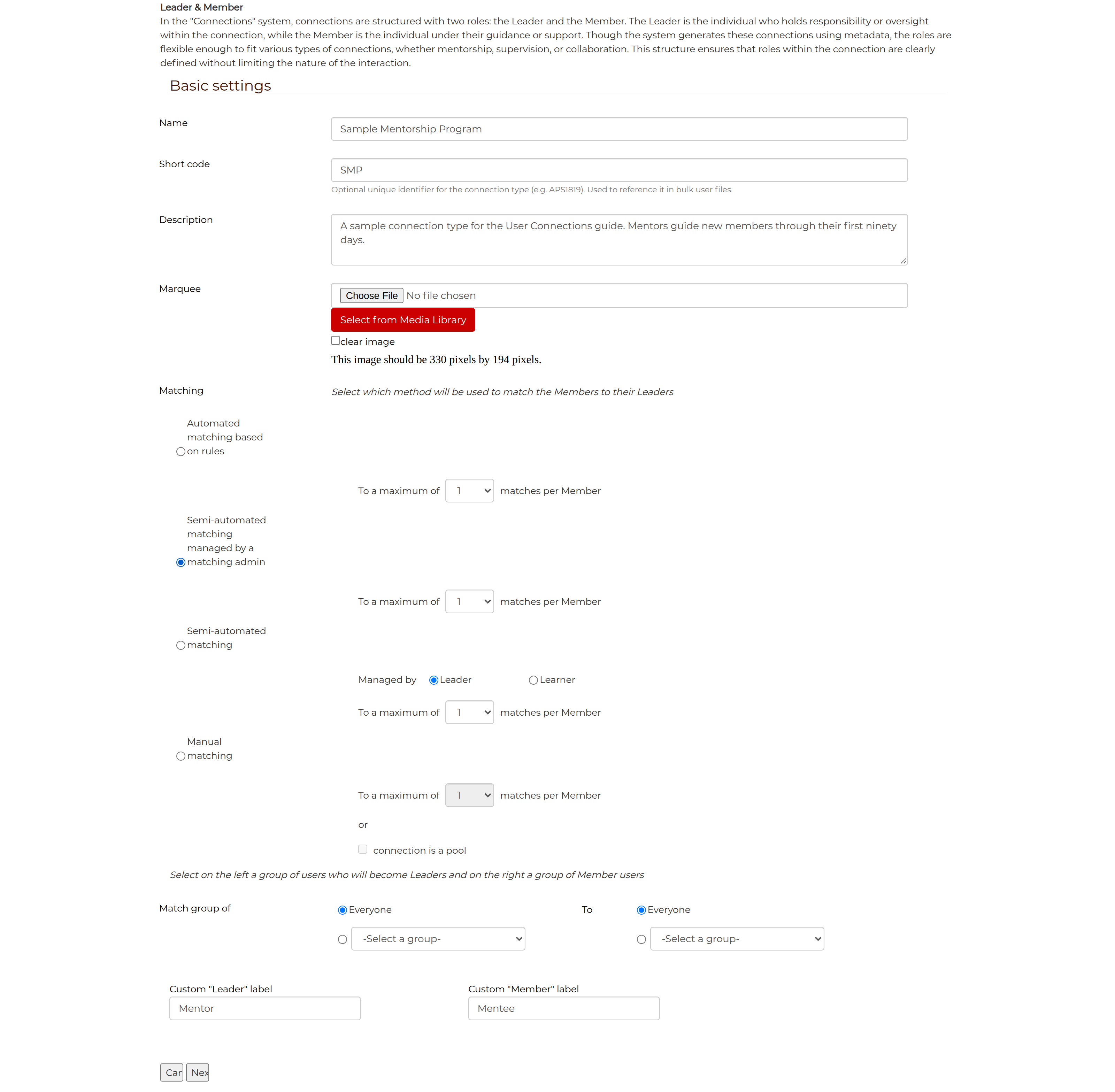
- Basic Settings — name, short code (an optional admin identifier used in bulk
user files), description (shown on the Hub), marquee image (330×194), matching method, Match Group Of / Match Group To, custom Leader/Member labels, and for pools the Connection is a pool checkbox.
- Permissions — the leader power checkboxes (§1.4).

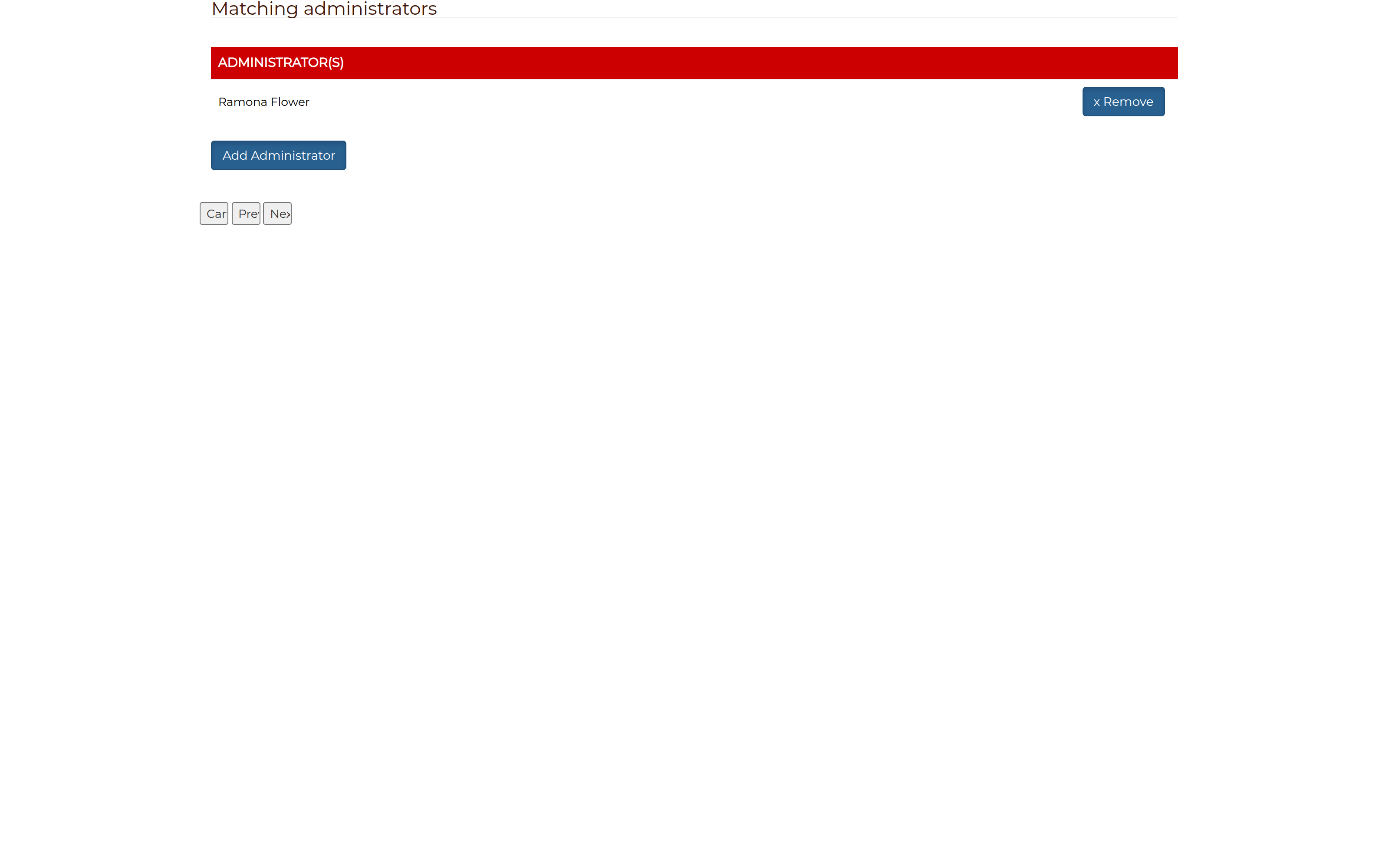
- Semi-Automated Matching Admins (only for semi-auto by admin) — who curates the
proposed matches.
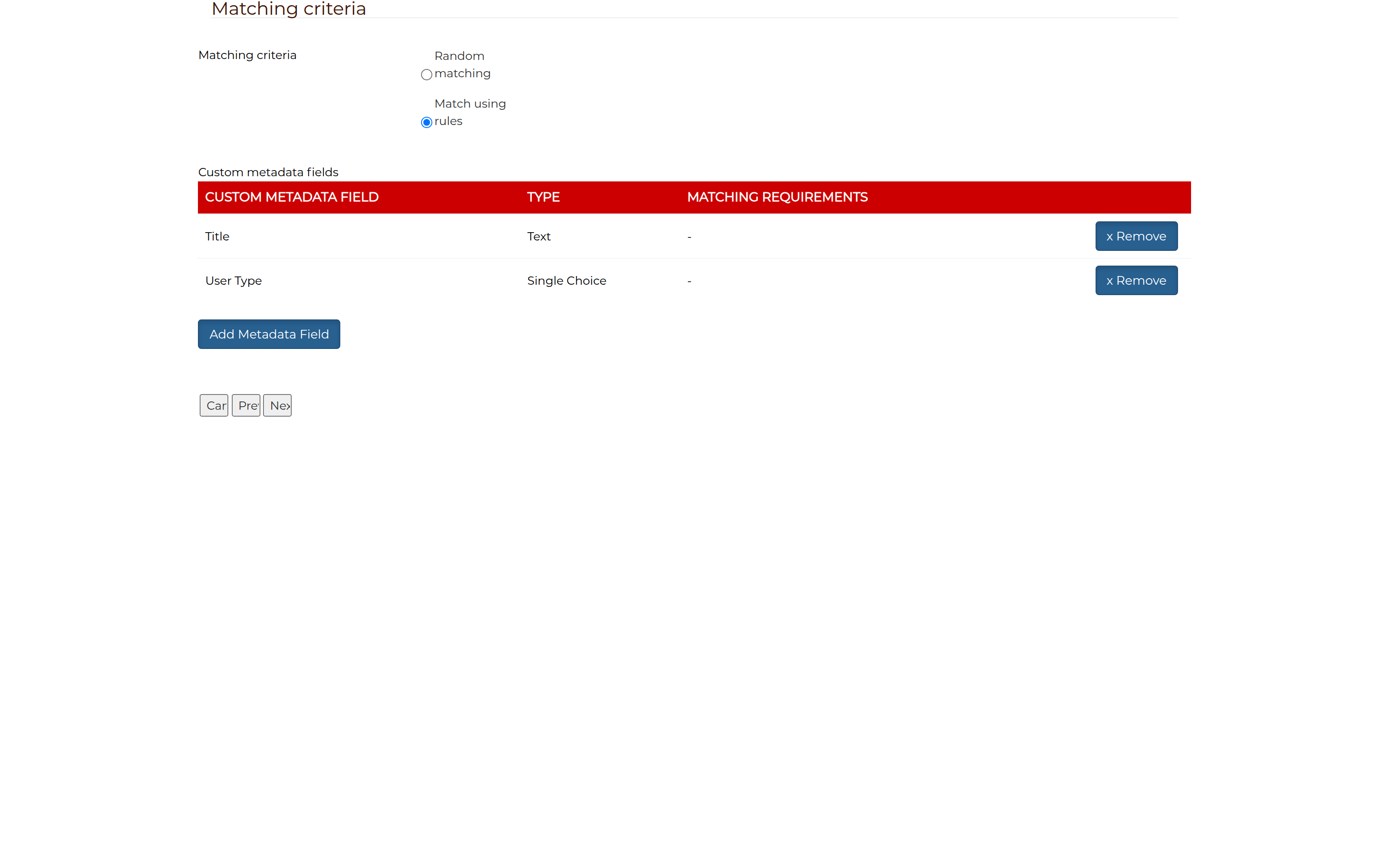
- Matching Criteria (auto and semi-auto modes) — random, or rule-based on
metadata fields; multi-select fields match N-of values; date fields support Exact or Threshold matching.
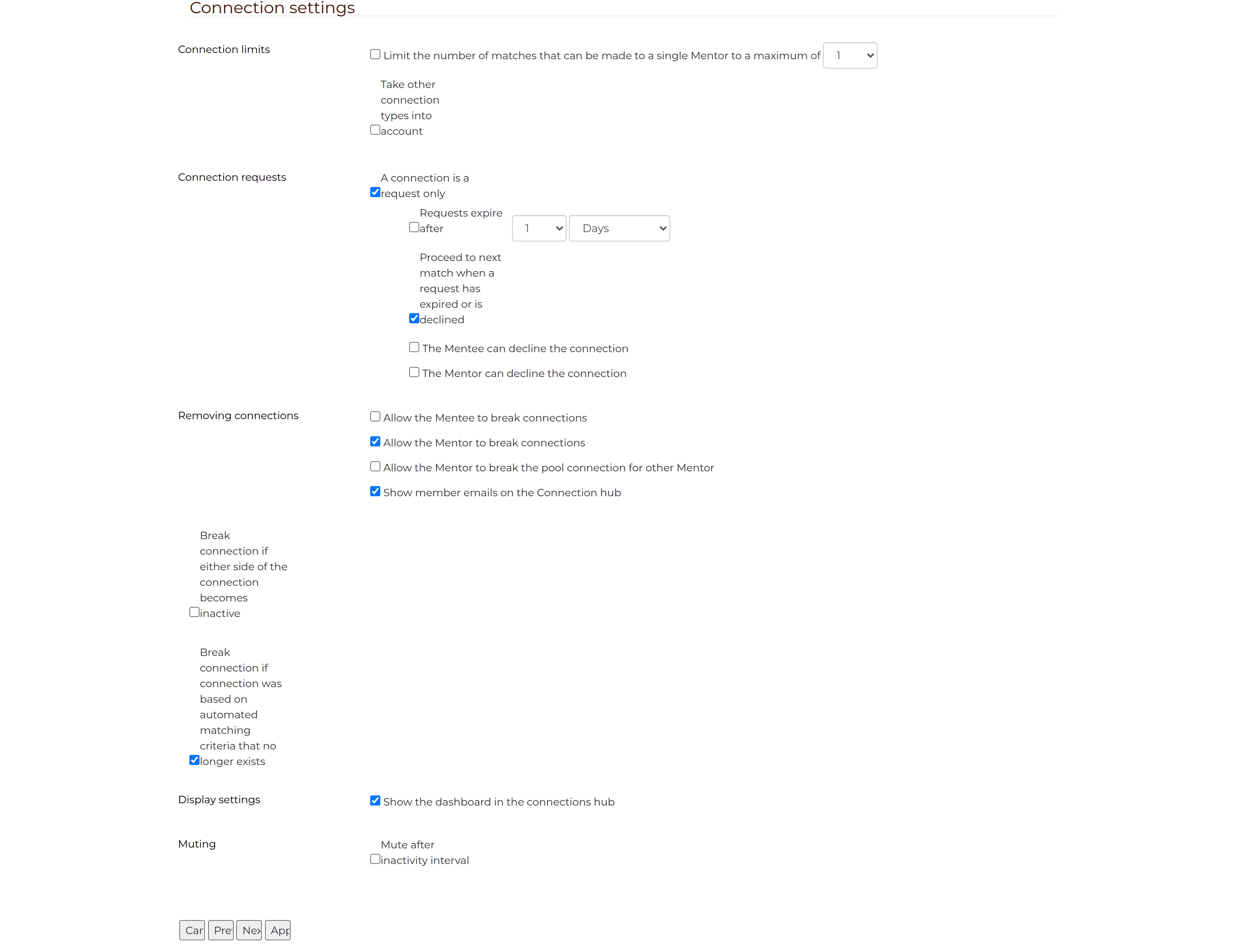
- Connection Settings (requests & limits) — per-leader connection limits with
take other connection types into account; requests on/off with expiry and process-next-match; decline and break rights for each side; auto-break on inactivity or when criteria no longer match; member emails on the Hub; show Dashboard in the Hub; muting after inactivity.
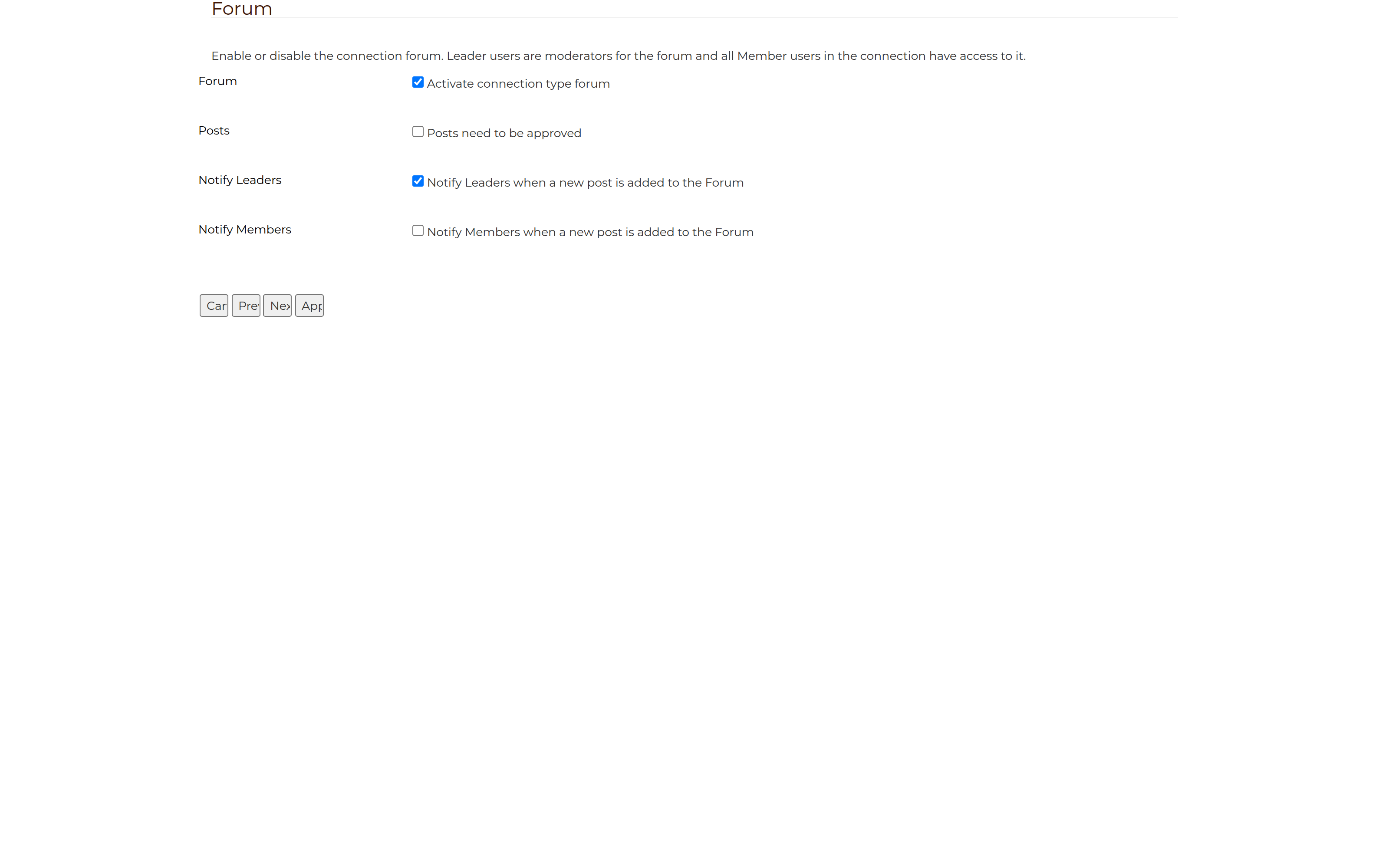
- Forum (any type) — activate the connection forum (presented to members as
"Group Discussion"); posts need approval; notify leaders and/or members on new posts.
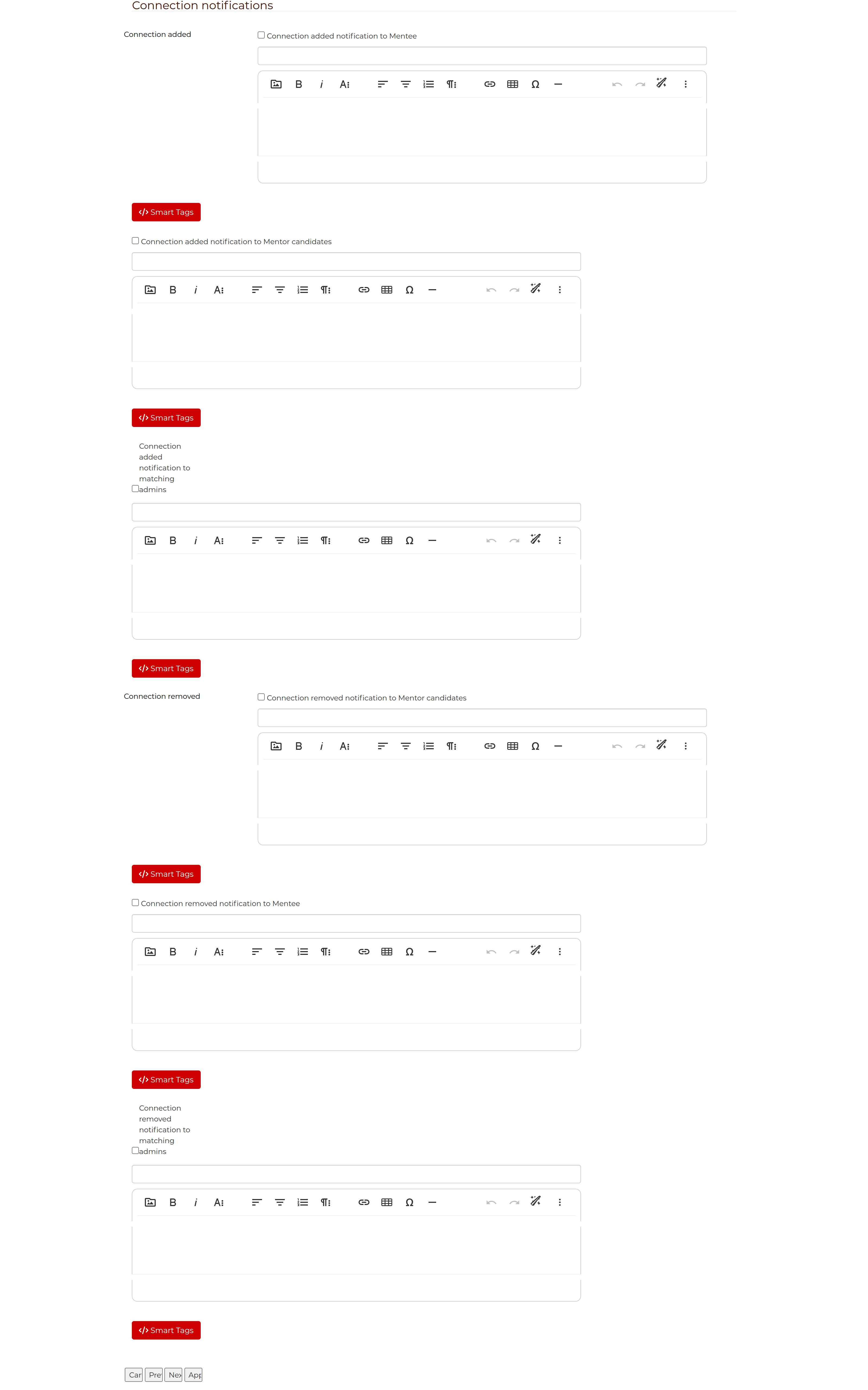
- Notifications — per-event templates (§3.5) with smart tags, each addressed to
members, leader candidates, and/or matching admins.
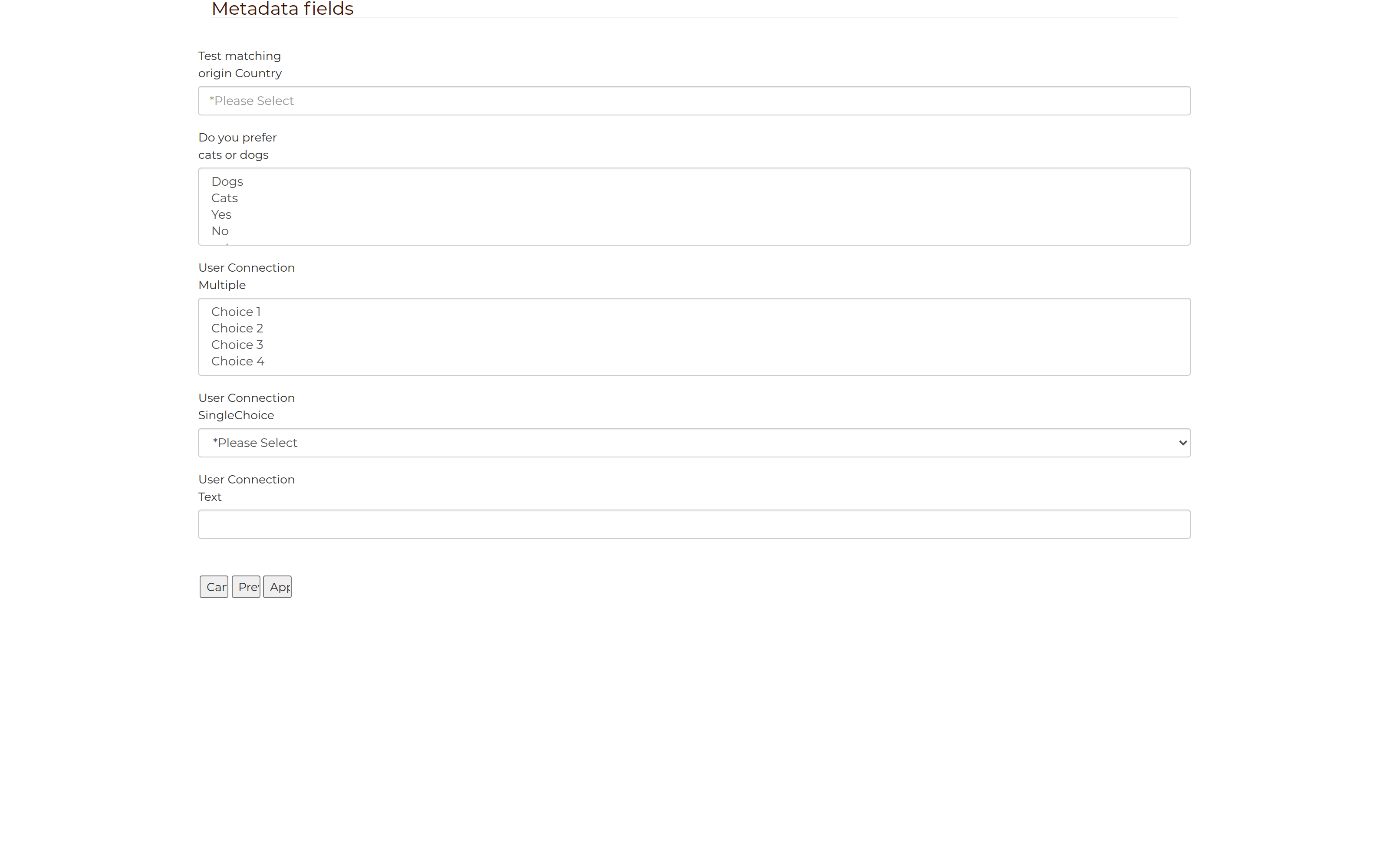
- Metadata fields — final step: values for any metadata fields defined for
connection types themselves (most sites have none; Apply here to finish).
After creation, the type is inactive until activated from the Connections page — the moment auto/semi types actually compute matches.
3.2 The request lifecycle
When requests are on, links pass through a real lifecycle:
stateDiagram-v2
[*] --> pending : match proposed / invite sent
pending --> active : both sides accept
pending --> declined : either side declines
pending --> expired : request expiry reached<br/>(daily processing)
declined --> nextmatch : if "process next match"
expired --> nextmatch : if "process next match"
nextmatch --> pending : next candidate proposed
pending --> invited : non-LMS email invite<br/>(awaiting registration)
invited --> active : invitee registers & accepts
active --> broken : break by member/leader/admin,<br/>inactivity, or criteria loss
broken --> [*]Notes:
- Accept is recorded per side; the mentor side can hold first or final decline rights
depending on configuration.
- Invited rows carry the invitee's email and name with a placeholder until the
person registers — this is how you can populate pools with people who don't have accounts yet.
- Break semantics differ by matching method: manual types remove the link;
auto/semi types mark it declined and queue a recalculation (so the system may propose a replacement).
3.3 Where people see their connections
| Surface | Who | What it shows |
|---|---|---|
| Connection Hub | Leaders | Tabs: Dashboard (opt-in per type), Activities, Members (enroll, transcripts, message, reset password), Tasks (approvals: enrollments, withdrawals, sign-offs, forum posts), Discussion (the type's forum), Report (full report wizard over own members). An All Connection Types aggregate view exists — and the default single-type view is a classic "half my team disappeared" trap. |
| My Connections | Everyone | "Users Connected to Me" + "My Activity Connections"; search by email, filter by type; break (if the type allows); Add/Invite Connections — connect an existing user, invite a non-registered person by email, or bulk-invite a comma list; revoke invitations. |
| Profile page | Everyone | "My User Connections" section. |
| Login / registration | Everyone | Complete Connection Setup page when matches await confirmation; an optional mentorship step during registration. |
| Learner View "My Connections" (new) | Everyone | A menu listing the learner's pools; each opens a pool dashboard — pool details, member chips (leaders first), and the pool forum. Leaders get a full tool set here — see §3.12. |
| Admin — Connections page (branch menu → Connections → User Connections) | Admins | Per-type columns: Name, Method, Matched, Unmatched, Undermatched, Pending, status toggle; Settings, Process Matches, Remove. The Manage view (auto/semi types) shows connections, filters connected/not, and the match log. Undermatched = has some matches but fewer than the cap. |
| Admin — per user (Users → More → Connections) | Admins | Leader/Member sections (add a supervisor or mentee by hand) and the Pool Connections section (add/remove from pools with role pick; includes inherited parent-branch connections). |
3.4 The matching engine, precisely
- Match groups. Match Group Of (who can be a leader) and Match Group To (who
can be a member) are each either Everyone or a rule-based group on metadata. Groups are evaluated per branch: types are branch-scoped and inherited down the branch tree.
- Criteria. In rules mode, a match requires the two users to share values in
the criteria fields (multi-select fields match N-of; dates match Exactly or within a Threshold). Multiple criteria are AND-ed. There is no OR and no "equals-this-specific-value" form — the value must be present on both users.
- Caps. Per-type max matches per leader, optionally counting other mentorship
types toward the cap; up to 25 candidates are shown for selection flows.
- Triggers. Matches compute: (1) when a type is activated; (2) on user metadata
change, branch add, and branch remove; (3) when an admin forces Recalculate from the Connections page; (4) daily, for expiry, reminders, and next-match processing. Nothing recomputes while the type is inactive.
- Always asynchronous. Recalculation runs as background work — never in the web
request. Consequence: changes are not instant.
3.5 Notifications
Per type, per language, with smart tags.
- Events: Connection Added; Connection Removed; Match Request — Pending, Accepted,
Declined, Pending Reminder, Expired, Match Removed/Broken. Each can target members, leader candidates, and/or matching admins.
- Pools get their own semantics: leader-added emails all leaders and members;
member-added emails all leaders plus the new member. Use pool smart tags — {{PoolUserName}}, {{PoolUserRole}}, {{PoolUserEmail}}, {{RecipientName}}, {{ConnectionName}}, {{MentorName}}, {{MenteeName}}, {{BranchName}}, {{LMSName}}. Using {{MenteeName}} in a pool template renders wrong.
- Connection Notification is separately a branch notification type governing
leader→learner messaging (the email-member button); sub-branches can override.
- Blocking inherits: if a learner has notifications blocked, the supervisor copy is
suppressed too — a silent-failure gotcha. Test accounts with fake email addresses silently swallow all connection mail.
3.6 Forums
- One forum per type, enabled in the wizard or later via Settings → Forum — available
to any connection type, one-to-one or pool.
- Posts need approval (members' posts only) routes approvals to the Hub Tasks
tab; leaders act as moderators.
- Notify leaders on new post: for one-to-one types, only that learner's leaders; for
pools, all leaders (including, currently, the poster). A separate Notify members on new post option also exists. On screen the forum is presented as Group Discussion.
- The forum surfaces in the Hub Discussion tab, the learner social page, and the
Learner View pool dashboard with deep-linkable threads.
3.7 Reporting
- User Connections Actions report (Reports → wizard → filter by Connection Hub +
Actions): summary plus a workbook per hub; counts of supervisor actions.
- Hub Report tab: the full report wizard scoped to the leader's own members —
activity selection (including metadata), time period, learner/enrollment status, metadata filters, nested learning-path activities, overdue workbooks.
- Note: there is no built-in "who is connected to whom" pair listing report; the
Actions report counts actions. The Manage view per type is the closest pair view.
3.8 The built-in "Supervisor" type
Every site starts with exactly one connection type named Supervisor — manual, no requests, ready to use. Small deployments often live entirely on it: assign managers, give them the default power bundle (enroll, attest, transcripts, reports, approve-enrollment, withdraw, extend-due-date), and you're done. Create additional types when you need different labels, rules, or powers — not before.
3.9 The feature family (don't confuse the siblings)
User Connections sits among related but distinct constructs:
| Construct | What it links | Use it for |
|---|---|---|
| User Connections (this guide) | user ↔ user, via designed types incl. pools | Supervision, mentoring, coordination, communities |
| Activity Connections (Connections → Activity Connections) | user ↔ activity | Grant non-admins powers over specific activities: approve enrollments/withdrawals, attestations, forum-post approval, start webinars, take attendance. Roles: Speaker, Moderator, Facilitator; internal or external contacts. Has Deny Inheritance for sub-branches and a per-activity connection cap. Feeds the same Hub (Activities/Tasks tabs) and My Connections page. |
A related piece: Connection Notification (§3.5) — the branch notification type gating leader→learner messaging.
3.10 APIs and integrations
- Users API: supervised-employees queries honor connection types.
- External-database user synch: connection changes are included in user synch
events, so HRIS-style integrations stay in sync.
- Learner View connections API: data and write operations for the Learner View
connections surface (gated by deployment, fail-closed).
- RegisterUser API accepts User Connections at account creation.
3.11 Branch scoping and inheritance
- Every type belongs to a branch; reads walk the branch path, so types defined on a
parent are visible/inherited in child branches.
- A type defined on a parent is **not usable for matching from a child branch
context** in some flows — "error retrieving the matching user list" usually means no active type exists in your branch. When in doubt, define the type at the branch where matching happens.
- Activity Connections have explicit Deny Inheritance; user connection types do not
have an equivalent switch.
3.12 Group-leader tools in the Learner View
The Learner View's My Connections surface is where connections turn into day-to-day work. Everyone sees their own connections there; leaders get a working set of tools on top. Open it from the Surfaces launcher: the My Connections row has a flyout listing every pool you belong to or lead, and picking one opens that pool's dashboard in its own tab. The All connections button (top of any pool dashboard) takes you to the full dashboard — that is where the leader tools live.
The full dashboard, panel by panel:
| Panel | Who | What's in it |
|---|---|---|
| My connections | Everyone | The connections you belong to, with your leaders listed. A Break button appears if the type allows members to break. |
| Connections I lead | Leaders | One chip per connection you lead: member count, invited count, muted state — plus quick actions (add/invite, mute). |
| Groups I lead | Leaders | Per group: the member list and any invited/pending people (first 8, then "+N more"), an Add / invite button, and a per-person remove (pools) or break (other types) link. |
| People | Everyone | A directory of everyone connected to you — search by name or email, filter by connection, 25 per page. A message icon per person (if connection messaging is enabled in your branch). |
| Activity connections | Everyone | The activities you are attached to as instructor/supervisor/reviewer (read-only). |
The leader tools, one by one:
- Add / invite people. In Groups I lead, click Add / invite on the group.
Enter one or more entries, comma-separated — the email, an optional * to make the person a leader (pools only), and an optional display name after a |:
`` jane@example.com|Jane Doe, bob@example.com*|Bob Boss ``
Up to 50 entries at a time. People who already have accounts are added directly — awaiting acceptance if the type uses requests — and everyone else is emailed an invitation (you are copied). The dialog reports a result per entry: added, added (awaiting acceptance), invitation emailed, already connected, or invalid.
- Remove someone (pools) / Break a connection (other types). Click remove or
break next to the person (visible when the type lets leaders break connections) and confirm. Removing a pool member breaks their link to every leader at once. Breaking in an automatically matched type marks the connection declined and queues a background recalculation — the confirmation toast tells you when that is happening. Every break is written to the connection's audit log.
- Mute / unmute a connection. The speaker icon in Connections I lead mutes a
connection you lead (if the type permits it). A muted connection disappears from Groups I lead but stays in the tile (grayed) and in your launcher flyout; unmute brings it back.
- Message a connected person. If connection messaging is enabled for your branch,
the People directory shows a mail icon on each row. Click it, write a subject and message, send — it goes out as a connection notification.
- Work the pool forum. The pool dashboard (the tab a flyout pick opens) is the
shared participant view — deliberately the same for leaders and members: pool name and description, member chips (leaders first and filled, members outlined), and the pool's forum panel with Latest posts and Most popular. Click any thread to open it in My Forums, where reading and posting happen.
Good to know:
- The leader actions live on the full dashboard (Groups I lead), not on the pool
dashboard itself.
- People who have been invited but have not joined appear in your leader panels as
(invited); they appear on the pool dashboard only after they accept.
- Every write action checks two permissions: the connection type must allow the action
(leader breaks, muting, inviting), and the deployment must have connection writes enabled. If an action fails with "not granted to this deployment," ask ThinkingCap support.
- The member list in Groups I lead shows the first 8 people with a "+N more" counter —
use People for the full directory.
Part 4 — Gotchas and troubleshooting
Symptom → cause → fix, grouped by phase.
4.1 Setup traps
| Symptom | Cause | Fix |
|---|---|---|
| "My Teams" empty despite correct matches | Same group on both sides of an auto-match → supervisors connected to each other | Use distinct leader and member match groups |
| "Error retrieving the matching user list" | No active type exists in your branch (types are branch-scoped) | Create/activate the type at the branch where matching happens |
| Vocabulary confusion: "Supervisors" vs "Connections" vs "Groups" | UI renamed over time; labels customizable per type | Map: Source/Target = Leader/Member; "pool connection" = "group" in learner UI |
| Break option missing for a user | Break rights are per-type checkboxes | Enable member/leader break on the type (or accept admin-only breaks) |
4.2 Matching traps (read before your first automated type)
| Symptom | Cause | Fix |
|---|---|---|
| Matches go to the wrong org/unit | Criteria compare shared values; one shared unit value wires a learner to every leader carrying it; criteria are AND-only | Design criteria fields so shared values are unique to the intended pair-set; split types per org unit |
| "Everyone whose Supervisor field = Smith" doesn't work | The engine cannot pick a value; both sides must carry the same value | Put the shared key on both users (e.g. both carry Unit = West) |
| Nothing recomputes after fixes | Type is inactive — no recompute while inactive | Activate; then edit/save one user to force recalculation |
| Learner-side changes match but leader-side don't | Only learner-side edits reliably triggered recalc historically | Force recalc from the Connections page after bulk leader changes |
| Metadata change not reflected | Mid-session cache + asynchronous recalc | Fresh login; recalc runs in the background regardless |
4.3 Lifecycle traps
| Symptom | Cause | Fix |
|---|---|---|
| Reactivated user lost all connections | Remove connections on inactive broke them; only automated types re-match | Rebuild manual connections by hand; consider leaving that flag off for manual types |
| Half the team "disappeared" from the Hub | Hub defaults to showing one type; the team is split across types | Default the Hub view to All; consolidate types |
| Pending invites never resolve | Requests require acceptance; invite-heavy pools accumulate pending links | Expected for invite-driven growth; report pending vs active separately, and consider whether requests should be on at all |
4.4 Notification traps
| Symptom | Cause | Fix |
|---|---|---|
| Supervisor never copied on learner emails | Learner has notifications blocked — the block suppresses the copy too | Unblock the learner, or accept the silence |
| Pool emails render wrong names | Mentor tags used in pool templates | Use pool smart tags ({{PoolUserName}}, {{PoolUserRole}}) |
| No connection mail at all in testing | Test accounts have fake email addresses; everything is silently swallowed | Use deliverable test addresses |
| Admins get nothing | Only the type's designated matching admins are notified | Set matching admins on the type |
4.5 Pool traps
| Symptom | Cause | Fix |
|---|---|---|
| Can't flip a type between 1:1 and pool | Different storage formats; flip is disabled once users are connected | Plan shape up front; conversions are support-assisted migrations |
| Duplicate members / inflated counts after bulk ops | Re-added an existing member — some add paths lack a duplicate check | Prefer the UI add paths; ask ThinkingCap support to audit for duplicates |
| Leaders listed among members | Deliberate: leaders see all leaders + members | Train facilitators — it is not duplication |
| A leader invited via the Learner View shows up as a member | Display quirk in the invite path | Harmless to counts; a display-only fix is being tracked |
| Pool's forum notify-all too noisy | Pool new-post notification goes to all leaders, including the poster | Current behavior; set expectations |
Guide v2, 2026-10-02. For article-level how-tos, see the Connections section of the ThinkingCap knowledge base: creating connection types, connection settings and permissions, matching (manual, automated, semi-automated), requests and process matches, pools (create, invite, manage, forum, notifications), the Connection Hub, and Activity Connections.